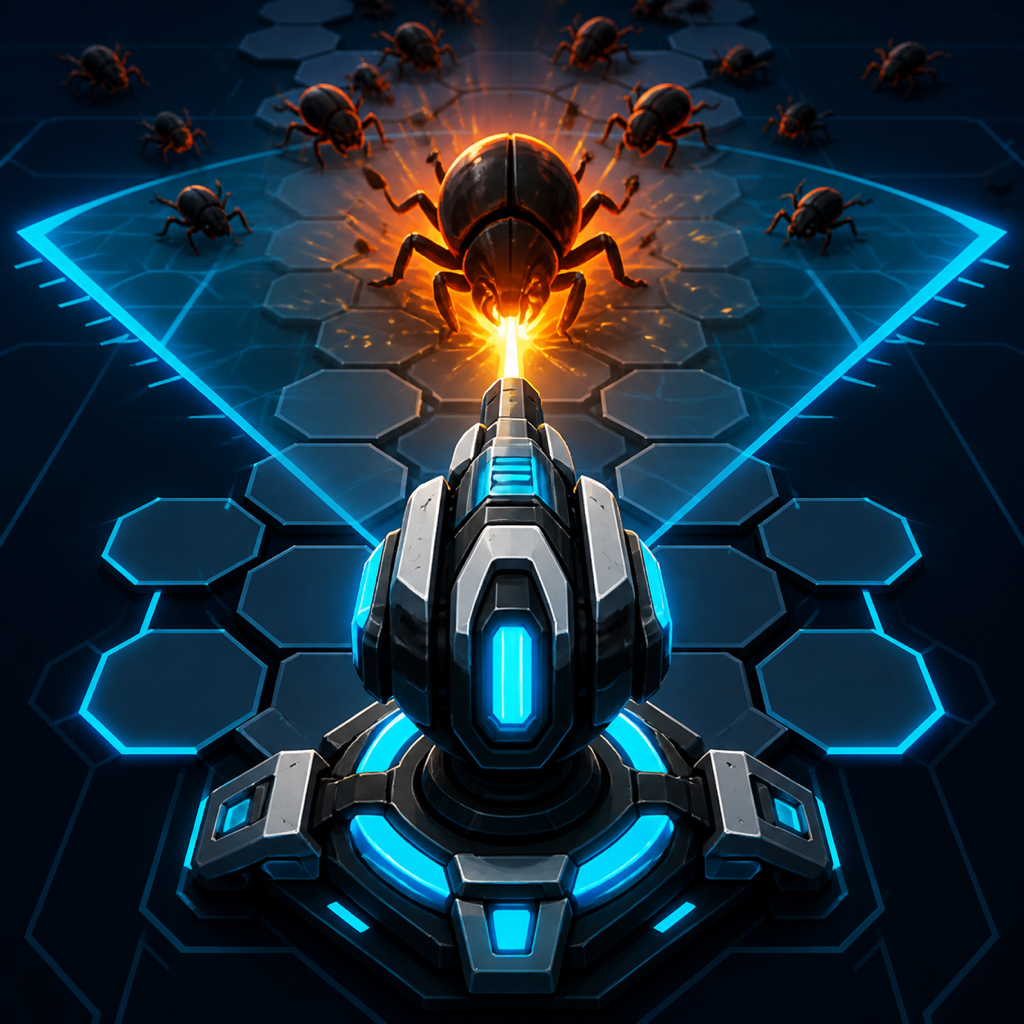
SUPPORT CHANNEL
Let's get your battlefield online.
Room Siege AR requires iOS 17 or later, an ARKit-compatible iPhone, camera permission, and a clear horizontal surface.
QUICK START
- 1Move slowly across a well-lit floor or tabletop.
- 2Face the direction the swarm should approach from.
- 3Wait for Surface Found, then tap Set Battlefield.
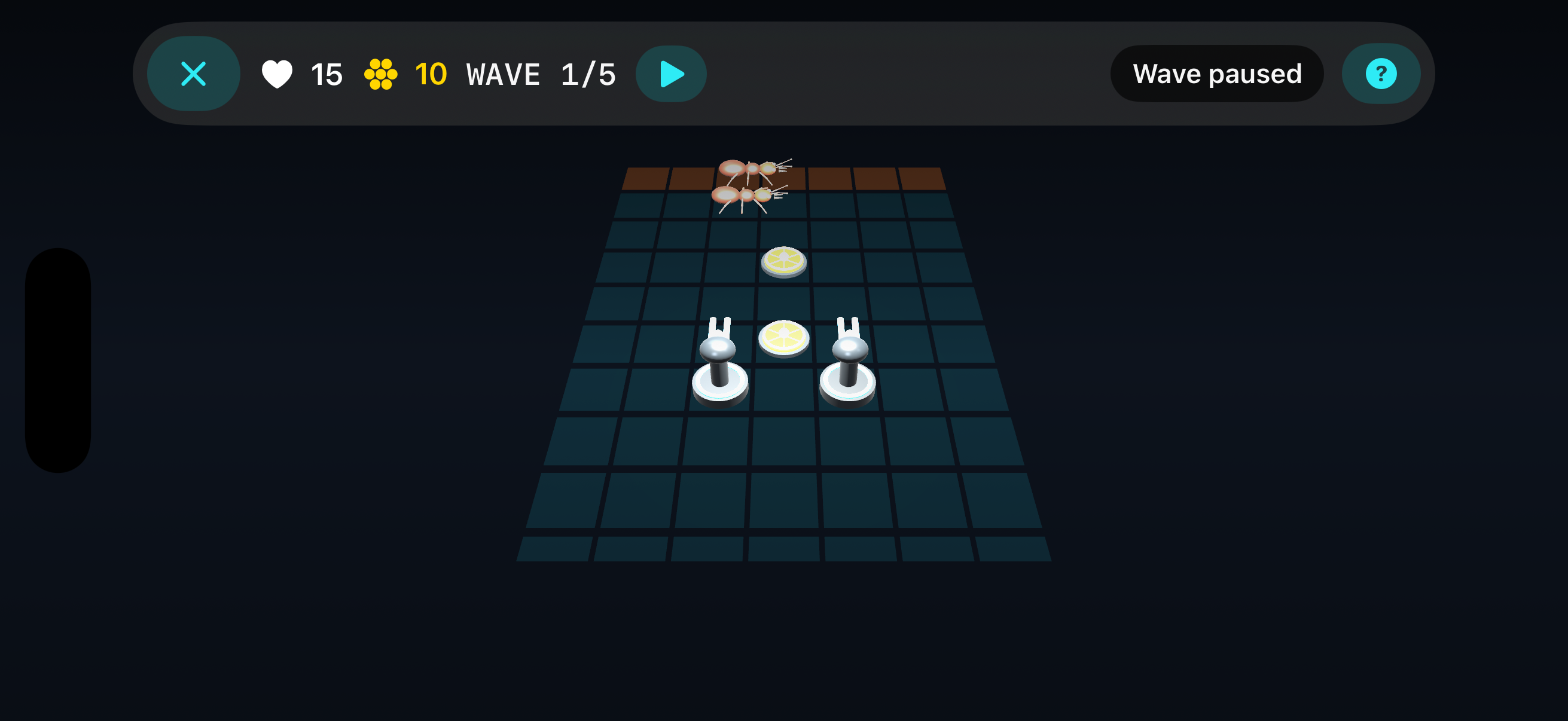
- 4Select a defense, tap a grid tile, and launch the wave.
TROUBLESHOOTING
Common fixes
No surface appears+
Increase room lighting, scan an area with visible texture, and move the device slowly. Glossy or featureless surfaces are harder to track.
Tracking becomes unstable+
Pause if a wave is active. During the build phase, choose Reset and scan the play area again. Current placements are fully refunded.
A placement is rejected+
The tile may be occupied, reserved for the spawn or barrier, over capacity, unaffordable, or the final remaining ground route.
Gear packs are unavailable+
Confirm the device is online, in-app purchases are allowed, and the App Store account is signed in. Gameplay rewards remain available.
A purchase was interrupted+
Open the Workshop while online. Verified unfinished purchases are recovered and credited automatically.
I want to change my build+
Choose Refund All Upgrades in the Workshop. Every gear spent on unlocks and upgrades returns immediately; campaign progress remains.
STILL STUCK?
Send a useful field report.
Include your device model, iOS version, room lighting, what you expected, and the exact steps that led to the problem. Never include passwords or payment details.